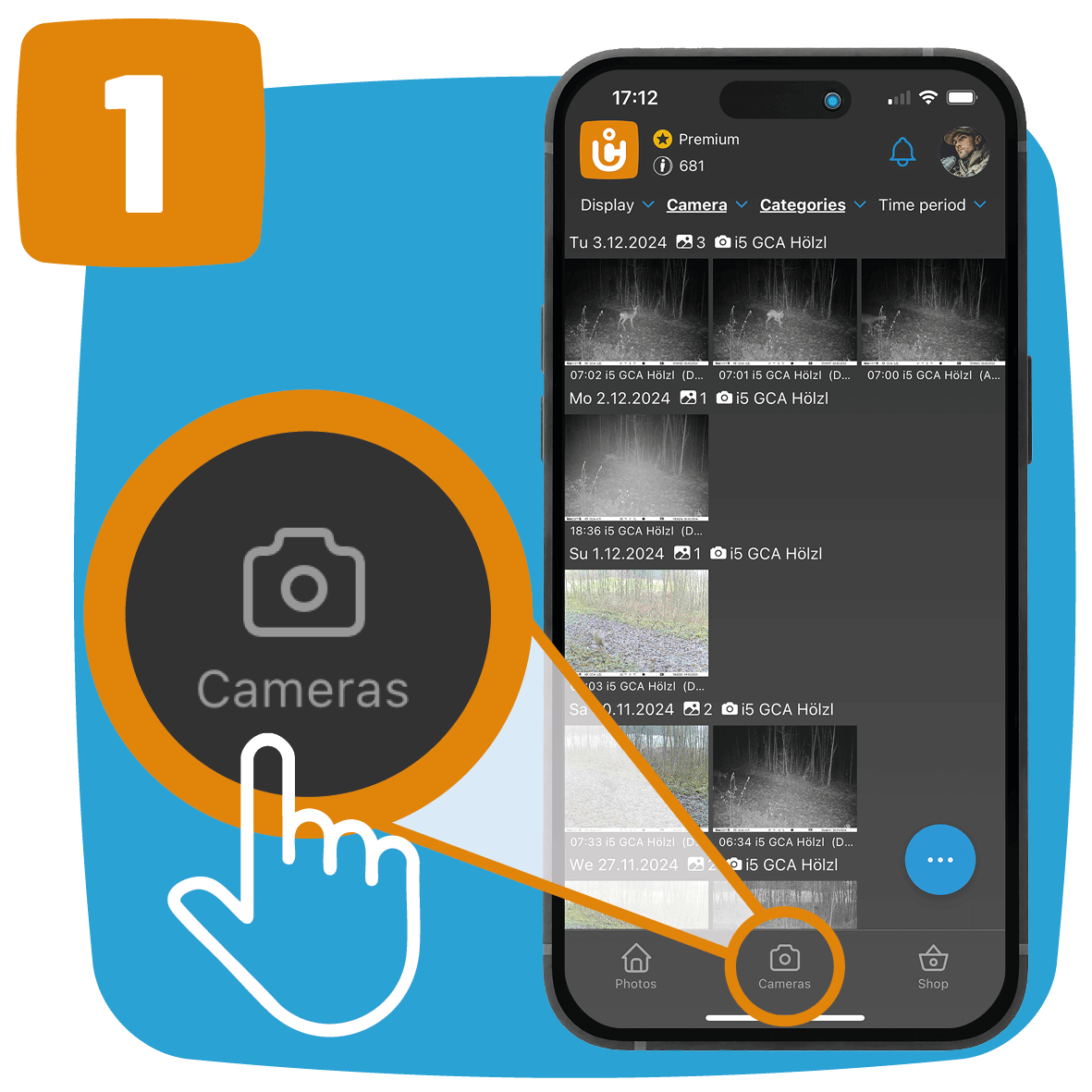
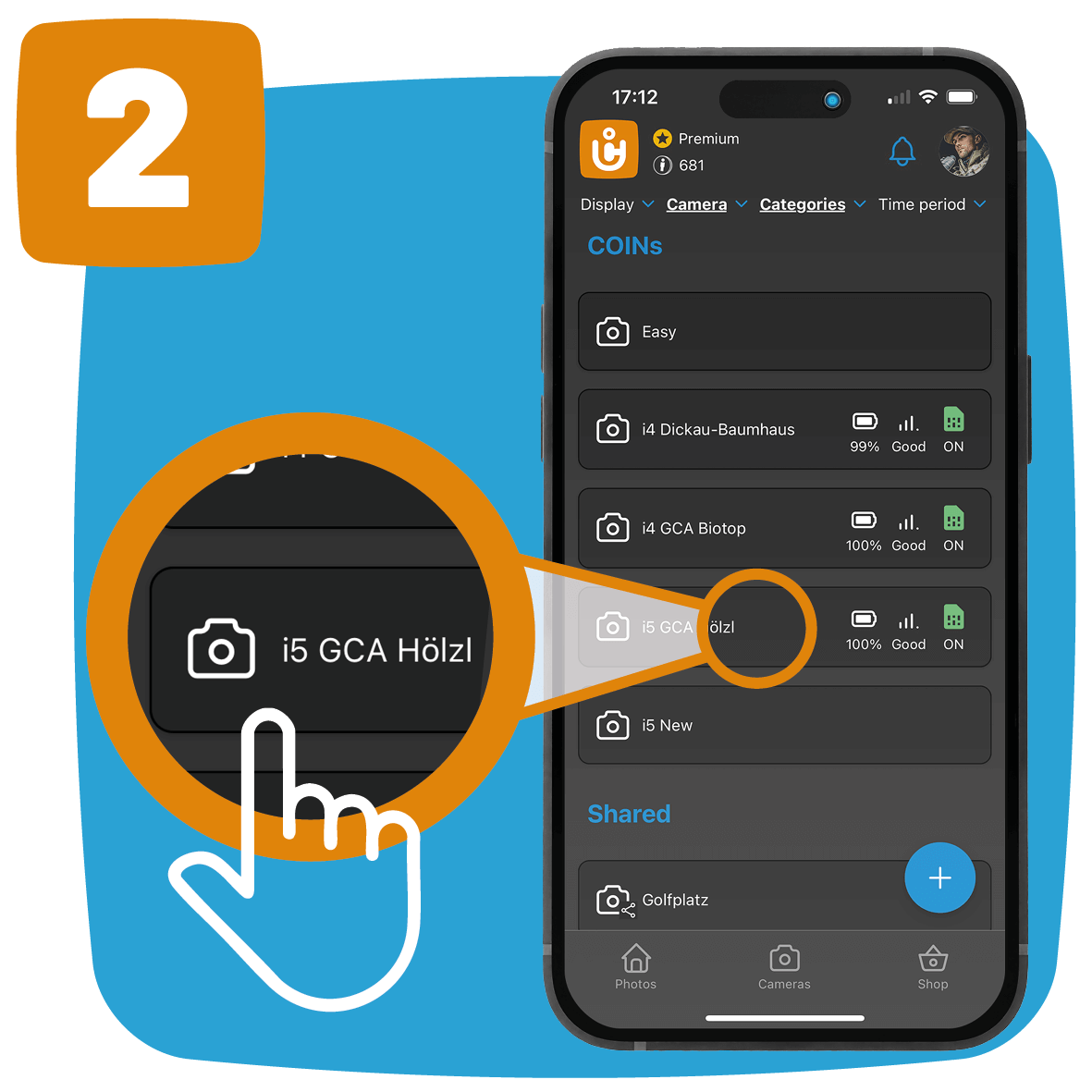
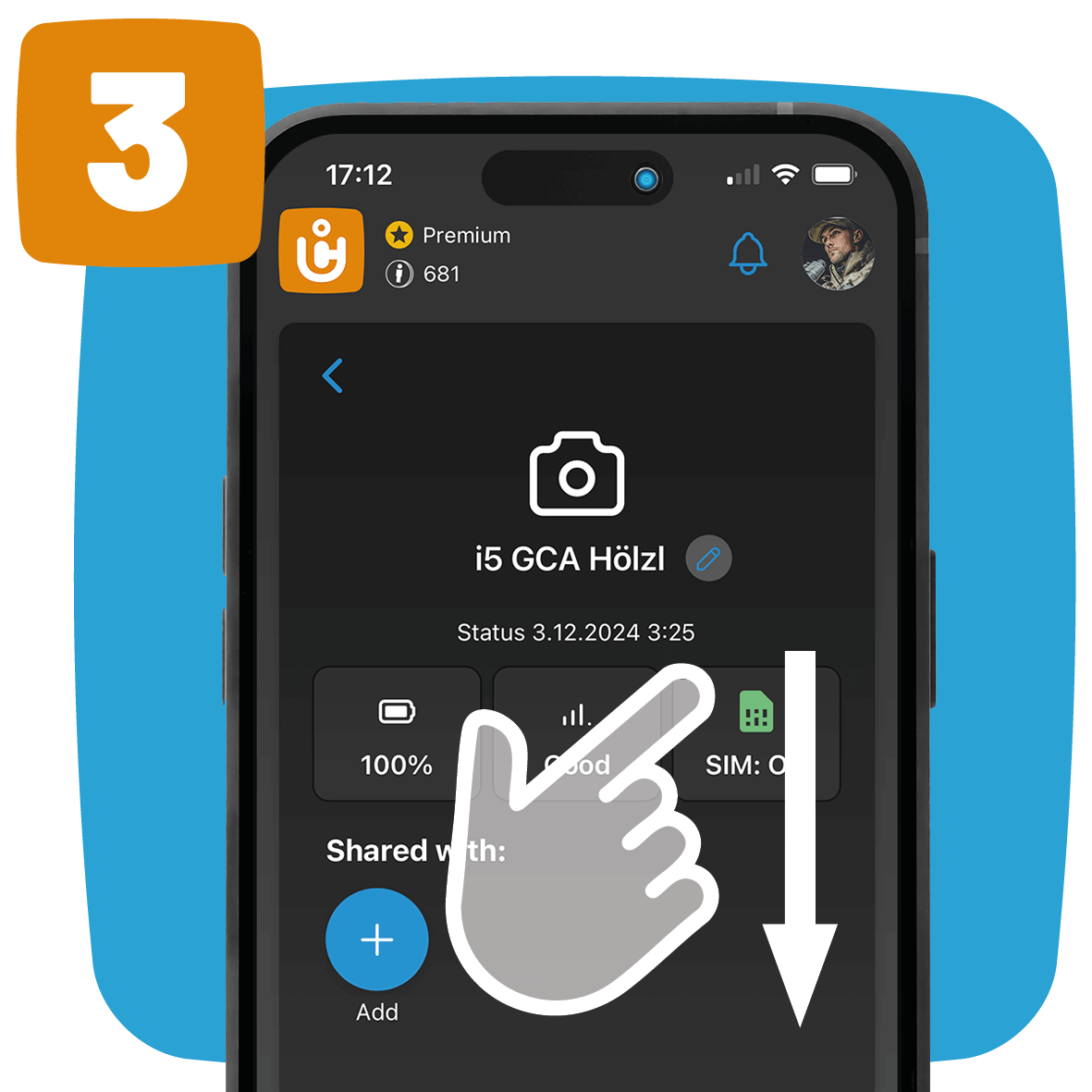
Here you can find the solution for a problem, which is valid for all products.
Here are the most common reasons why cameras take too many pictures or trigger permanently:
Reason #1: The time-lapse function is switched on.
If you do not have the camera at hand, then observe whether the pictures actually arrive at exactly even intervals (to the minute).

In the image overview, you can recognise a time-lapse image by a circled “(T)” instead of the “(M)” at the bottom of the picture. “(R)” you will see whenever you request a picture from the camera as a premium customer.
Reason #2: A moving object interferes with the motion detector
- Make sure that there are no branches/bushes/high grasses or the like in front of the camera or in the camera’s field of vision that could trigger the sensor due to their movements.
- Furthermore, the infrared sensor can be triggered, for example, by solar radiation and the associated temperature fluctuations.
- Check the parameter setting “Sensitivity” (“Cameras”->”Settings”). For warm ambient temperatures, please set the sensitivity to “High” and in the cold season to “Low”.
- Try to position the camera so that there are no heat sources in the area of the camera’s field of view.
- In some cases, the camera takes photos without objects when positioned near water.
- Try to point the camera so that it is pointing at solid ground. Try to install the camera on stable, immovable objects, e.g. large trees.
- The rising or setting sun can trigger the camera sensor. The camera should then be positioned differently.
Reason #3: Due to the strong temperature changes, moisture inside the unit causes malfunctions.
See also this contribution.